
Intelligent Document Processing: From Files to Data
How can your team trust an extracted field without rereading every document?
Patrick Chemoul, CEO of Dopweb
November 6, 2026
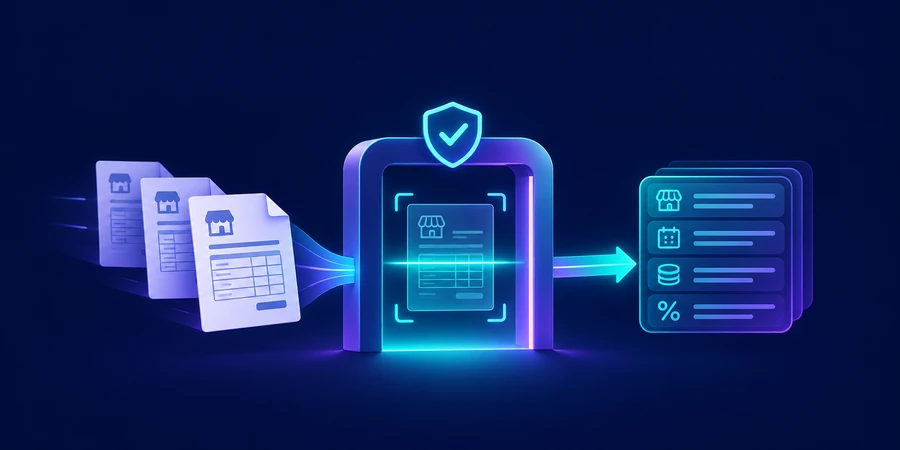
Intelligent document processing turns variable files into structured fields and validates those fields before they reach a business system. A useful workflow keeps the source evidence, identifies missing information, and sends exceptions to a reviewer who can verify and correct the result.
What happens between receiving a file and extracting data?
Start with a stable document ID and preserve the source. Some PDFs contain selectable text. Scans need optical character recognition. Then an extraction component identifies relevant fields and, where possible, associates each field with a source region. The workflow should distinguish a missing field from a proposed value that needs review. Keep that distinction through the integration so staff know what to do next.
Define the business schema first
A distributor processing supplier invoices may need an invoice number, vendor ID, purchase order, line items, and total. Decide how to represent currency, dates, tax, and units. A correct total does not prove all line items match. Keep the document’s original values alongside normalized values so staff can verify a mismatch without guessing how the system converted it.
Example: invoice intake for an accounts payable team
The team receives PDF invoices from suppliers with different layouts. A pilot extracts the invoice number, purchase order reference, and totals. A rule checks the supplier and purchase order in the accounting system. A correct-looking supplier name does not establish identity. Use a stable supplier record and route ambiguities to staff. Keep payment and bank-detail changes outside the pilot.
What should the exception queue show?
Show the invoice, the proposed values, and the reason for review. If the invoice references a closed purchase order, include the status and the source that returned it. If a line has an unclear quantity, show that region of the document. Let reviewers correct a field without re-entering the entire invoice, and preserve the correction with a reason so you can improve the next test set.
How can the workflow avoid duplicate invoices?
Use a business key that includes the vendor and invoice number, and check it before writing. Do not assume two files with different names are different invoices. When the key matches but the totals differ, hold the new file as a possible revision. Check whether a prior write succeeded before retrying after a timeout.
What should you measure in an IDP pilot?
In a hypothetical batch of 120 invoices, 84 need no correction, 24 require review, and 12 require a replacement file. That is 70% usable on first pass. Report document-level outcomes alongside field-level accuracy. A system can extract most fields correctly while still misreading the purchase order often enough to make the batch unusable.
84 first-pass invoices 24 invoices needing review 12 replacement files needed
In a second simulation, staff spend nine minutes each on 50 manual cases and five minutes each reviewing assisted cases. The gross difference is 200 minutes. Include time spent resolving missing purchase orders or asking suppliers for clearer files when you measure the net result.
450 min manual handling 250 min assisted handling 200 min gross difference
How do you decide which fields can go straight through?
Start with fields that can be checked independently. Compare amounts to line totals and verify the vendor and purchase order against the accounting system. Where the evidence is weak or the result has a financial effect, keep a review. Test representative layouts, split invoices, duplicate emails, and unreadable scans before expanding the eligible document set.
How should the system handle integration failures?
Use a draft state separate from the final write. Give staff a way to see whether an invoice was extracted, reviewed, or actually registered. Test a timeout after submitting a record and check the accounting system before retrying. See RPA vs. intelligent automation for choosing the integration path, and Microsoft’s document intelligence documentation for extraction concepts.
How do you handle new suppliers and layouts?
Keep test documents from suppliers that work well and those whose invoices need correction. When adding a new layout, rerun the stable examples. A change that improves extraction on dense tables could affect simpler invoices. Review accuracy by field and by supplier group so you can identify whether the issue follows the layout, the scan quality, or the reference data.
Assign ownership of validation rules
Decide who owns rules for mismatched totals, closed orders, and duplicate invoices. An accounting rule should be reviewed by the person who understands when an exception is valid. Save an example for each rule, including one invoice that should be rejected. Change one control at a time when practical so the results show which change made the difference.
Decide what to retain
The original invoice, the extracted fields, the normalized values, and staff corrections serve different purposes. Document where they live and who can see them. Limit the content sent to a model when only a few fields are needed. Test that the review screen still provides enough source evidence to resolve a mismatch.
See the intelligent automation guide to see how this step fits into the full workflow.
What if the extracted values conflict with the business rules?
Suppose the model extracts $240 for a line while the purchase order lists $204. Keep both values and their sources. Ask the reviewer to identify whether the discrepancy is a reading error, a changed order, or a supplier issue. Recording the reason helps you choose whether to improve extraction or adjust the business process. Refresh the purchase order before applying a correction if it may have changed during review.
How Dopweb builds document processing workflows
We sample your documents, define the fields and checks with your team, and build the integration and exception queue. We scope what goes to a model, measure retries, and document the manual path. After launch, we can add document families based on evidence from the first pilot. Explore AI Agents & Workflow Automation.
About the author — Patrick Chemoul, CEO of Dopweb
Patrick Chemoul leads Dopweb, an agency helping businesses with websites, software, and automation. The agency also provides AI agent integration and team training. Learn about Dopweb.
Frequently Asked Questions
How is IDP different from OCR?
OCR recognizes characters. Intelligent document processing extracts useful fields, validates them, and routes exceptions.
What happens when a file cannot be read?
Keep the reference, identify the fields that could not be extracted, and route the case for review or a replacement file.
How do you detect duplicates?
Use a business key such as vendor and invoice number. Compare the contents when that key matches a previous document.
Can extracted fields go straight through?
Start with fields you can verify independently. Keep a review for uncertain values and actions with financial consequences.
Let’s Talk About Your Project
Tell us which process you want to improve. We’ll help define a first workflow your team can test.